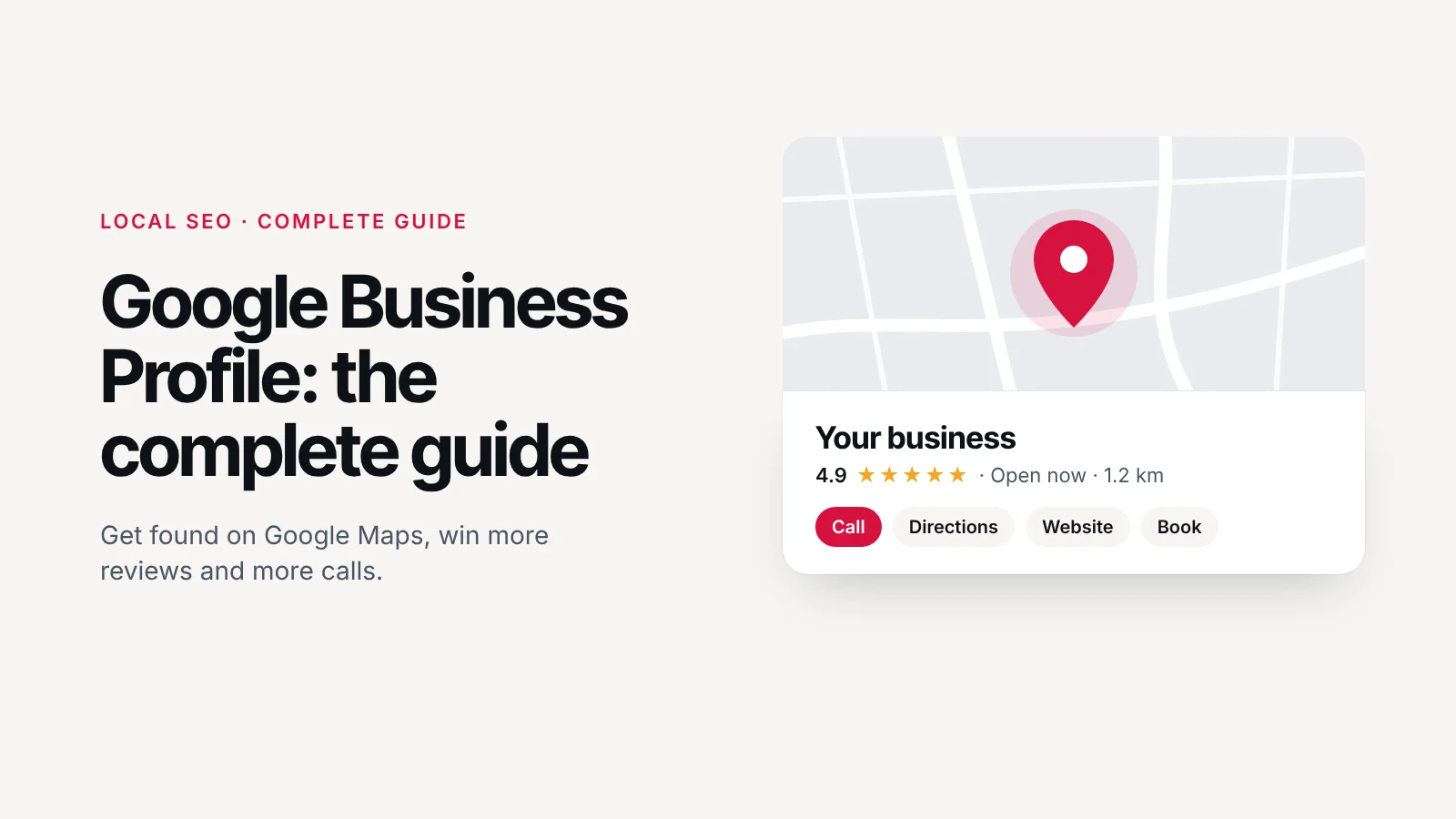
When someone searches for a plumber, a car rental or a restaurant “near me”, the first thing they see is usually not a website. It is a map with three businesses, their stars, their opening hours and a button to call. Those three places come from Google Business Profile, and for most local businesses they bring more calls than the website itself.
This guide explains how to set up and run a Google Business Profile that brings customers: what Google uses to rank local businesses, how to complete every part of the profile, how to get more reviews, the mistakes that can get a profile suspended, and two real examples from our clients.
What is Google Business Profile?
Google Business Profile (formerly Google My Business) is the free listing that shows your business on Google Search and Google Maps: name, address or service area, phone number, website, opening hours, photos, reviews and posts. It is also one of the sources Google’s AI uses when it recommends local businesses, so a good profile helps you in the map, in the results and in AI answers.
How Google ranks local businesses
According to Google’s own help page, local results are based on three factors:
- Relevance: how well your profile matches what the person searched for.
- Distance: how far your business is from the person searching, or from the location in the search.
- Prominence: how well-known your business is, based on things like links from other websites and the number and rating of your reviews.
Google is also clear that “there’s no way to request or pay for a better local ranking on Google”. You cannot change the distance, but relevance and prominence are fully in your hands, and that is what the rest of this guide is about.
How to set up your Google Business Profile, step by step
1. Claim and verify the profile
Search for your business on Google Maps. If it already exists, claim it; if not, create it at business.google.com. Verification can be done by video, phone, email or postcard, depending on what Google offers you. An unverified profile cannot be fully managed and ranks poorly.
2. Use your real business name
Write the name exactly as it appears on your sign, website and documents. Do not add keywords or cities (“Best Car Rental Sibiu Airport Cheap”). Google’s guidelines say plainly that “including unnecessary information in your business name isn’t permitted”, and it is one of the most common reasons for suspension.
3. Choose the right categories
The primary category is one of the strongest relevance signals. Choose the one that best describes your main business (“Car rental agency”, not just “Rental”), then add secondary categories for other important services.
4. Address or service area
If customers come to you, show your address. If you go to them, as a builder or an installer does, set a service area with the towns you cover and hide the address, as Google requires for service-area businesses.
5. Phone, website and opening hours
Use a local phone number that is actually answered, link to the most relevant page of your site, and keep hours up to date, including holidays. Wrong hours are the fastest way to lose a customer’s trust.
6. Services, products and description
List every service with a short description and, where you can, a price. In the description (up to 750 characters) say clearly what you do, for whom and where. Write for people, not for keywords.
7. Photos and videos
Add real photos: the outside of the location, the team, your work, your products. Add new ones regularly. Customers trust a profile with recent, real photos far more than one with three logos and a stock image.
8. Booking and messaging
If customers can book online, add the booking link so a “Book” button appears on the profile. Make it as easy as possible to go from the map to a call or a booking.
Reviews: the part that matters most
Reviews influence both your ranking and the customer’s decision. To get more of them:
- ask every happy customer, right after the job is done, when they are most satisfied;
- send them a direct review link (from the profile, “Ask for reviews”), or put a QR code on the invoice or at the counter;
- reply to every review, positive or negative, politely and specifically;
- never buy reviews or offer discounts and gifts in exchange for them. It breaks Google’s policies and can lead to removed reviews or a suspended profile.
A calm, helpful reply to a negative review often convinces future customers more than ten five-star reviews.
Keep the profile active
- Publish posts with offers, news and recent work.
- Answer questions people ask on the profile.
- Check the profile every month: Google and users can suggest edits, and not all of them are correct.
- Look at the profile performance report: searches, calls, website clicks and direction requests.
Real examples
Vabova Speed, car rental in Transylvania
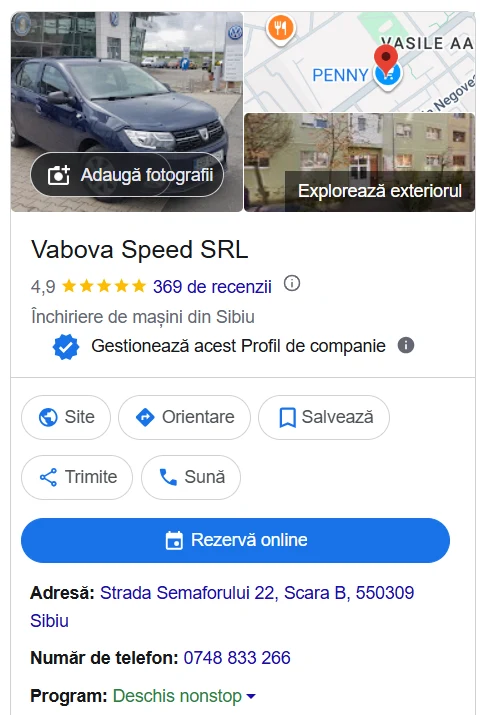
For a car rental, the map is the shop window. We look after Vabova Speed’s profile like a second website: accurate details, opening hours, photos, replies to reviews and a “Book online” button that leads straight into their booking system. In November 2026 the profile had a 4.9 rating from 369 reviews, and in the local results for car rental in Sibiu, Vabova Speed was the first business shown.
Iro Panoramic, stretch ceilings in Vâlcea
For Iro Panoramic we keep the address, phone, hours and photos of finished jobs up to date. In November 2026 the profile showed 5.0 stars from 28 reviews, and Google’s AI summary for “tavane extensibile valcea” listed the company first among the local stretch ceiling businesses.
Common mistakes
- Keywords or city names added to the business name.
- Several profiles for the same business, or a profile at an address where you do not work.
- Different name, address or phone on the website, the profile and other directories.
- Wrong or missing opening hours.
- Unanswered reviews and questions.
- A profile created once and never touched again.
Frequently asked questions
Is Google Business Profile free?
Yes. Creating and managing a Google Business Profile is free. You only pay if you choose to advertise.
Can I have a Google Business Profile without an address?
Yes. Service-area businesses, which visit customers instead of receiving them, can hide their address and show the areas they serve.
How long until my profile ranks?
A verified, complete profile can start appearing in a few weeks. Climbing to the top three in a competitive area usually takes months of reviews, photos and a website that supports it. Read more in how long SEO takes to show results.
Does the profile help in AI answers?
Yes. Google recommends keeping Business Profile information current for its AI features, and the details, reviews and photos often appear in AI summaries. See our guide on getting recommended by ChatGPT and Google AI.
Need help with your Google Business Profile?
We set up, verify and manage Google Business Profiles as part of our SEO services, together with the website and reviews strategy that make them work. Ask for a quote.